CONTENT
ここから
この節で学ぶこと
前回の 4-12 では、TikTok風アプリの下部に表示するユーザー名・キャプション・音源情報を作りました。
BottomVideoInfo
├─ ユーザー名
├─ キャプション
└─ カテゴリ + 音源情報
ここまでで、TikTok風アプリに必要な部品がかなり増えてきました。
動画背景、上部ナビ、右側アクションバー、いいねボタン、コメント画面、下部情報など、さまざまなWidgetが登場しています。
今回の 4-13 では、これらのWidgetを役割ごとに分割して、読みやすいコードに整える考え方を学びます。
この節で大切なのは、次の一文です。
Flutterの画面は、大きな1つのコードで作るのではなく、役割ごとのWidgetに分けて作る。
なぜWidgetを分割するのか
アプリが小さいうちは、1つのWidgetの中にすべてを書いても動きます。
たとえば、次のように1つの build メソッドの中に、動画背景、ボタン、コメント欄、下部情報を全部書くこともできます。
ShortVideoHomePage
└─ build
   ├─ 動画背景のコード
   ├─ 上部ナビのコード
   ├─ 右側ボタンのコード
   ├─ コメント画面のコード
   └─ 下部情報のコード
しかし、この書き方には問題があります。
コードが長くなりすぎる
どこに何が書いてあるか分かりにくい
修正したい場所を探すのに時間がかかる
同じようなUIを再利用しにくい
エラーが出たときに原因を探しにくい
そこで、役割ごとにWidgetを分けます。
VideoBackground
RightActionBar
ActionButton
CommentSheet
BottomVideoInfo
このように分けることで、コードの見通しがよくなります。
新しい言葉:責任とは何か
プログラミングでは、「この部品は何を担当するのか」という考え方が大切です。
この「担当する役割」のことを、ここでは責任と呼びます。
初心者向けには、次のように理解してください。
責任 = そのWidgetが担当する仕事
たとえば、TikTok風アプリでは、次のように責任を分けられます。
| Widget | 責任 |
|---|---|
VideoBackground | 動画を背景として表示する |
RightActionBar | 右側の操作ボタンを並べる |
ActionButton | いいね・コメントなどのボタン1つ分を表示する |
CommentSheet | コメント欄全体を表示する |
CommentTile | コメント1件分を表示する |
CommentInputBar | コメント入力欄を表示する |
BottomVideoInfo | 投稿者情報・説明文・音源情報を表示する |
このように、1つのWidgetに1つの役割を持たせると、コードが読みやすくなります。
Widget分割前の問題
たとえば、右側のボタンを全部1つの画面の中に直接書くとします。
Positioned(
  right: 16,
  bottom: 90,
  child: Column(
    children: [
      Icon(Icons.favorite_rounded),
      Text('1.3万'),
      Icon(Icons.mode_comment_rounded),
      Text('324'),
      Icon(Icons.bookmark_rounded),
      Text('1.2K'),
      Icon(Icons.reply_rounded),
      Text('856'),
    ],
  ),
)
この程度ならまだ読めます。
しかし、実際には色、サイズ、影、タップ処理、アニメーション、数字の表示なども入ります。
すると、すぐに長くなります。
右側ボタンのコードだけで数十行
コメント欄だけで100行以上
動画再生処理も入る
状態管理も入る
このままでは、コード全体が読みづらくなります。
そこで、右側ボタン全体を RightActionBar に分けます。
Positioned(
  right: 16,
  bottom: 90,
  child: RightActionBar(...),
)
画面全体のコードを見るときは、これだけで意味が分かります。
ここには右側アクションバーがある
細かい中身を見たいときだけ、RightActionBar のclassを見に行けばよいのです。
新しい言葉:可読性とは何か
可読性とは、コードの読みやすさです。
初心者向けには、次のように理解してください。
可読性 = あとから見ても、何をしているコードか分かりやすいこと
動くコードを書くことも大切ですが、読みやすいコードを書くことも同じくらい大切です。
なぜなら、アプリ開発では、あとから何度もコードを修正するからです。
一度作る
↓
デザインを直す
↓
機能を追加する
↓
バグを直す
↓
別の画面に応用する
このとき、コードが読みにくいと、修正するだけで大変になります。
Widgetを分割することは、可読性を高めるための大切な方法です。
今回の完成アプリのWidget構造
最終的なTikTok風アプリは、次のようなWidget構造になります。
TikTokLikeVideoApp
└─ MaterialApp
   └─ ShortVideoHomePage
      └─ PageView.builder
         └─ ShortVideoPage
            ├─ VideoBackground
            ├─ VideoGradientOverlay
            ├─ TopNavigation
            ├─ PageIndicator
            ├─ RightActionBar
            │  ├─ ProfileButton
            │  ├─ ActionButton
            │  ├─ ActionButton
            │  ├─ ActionButton
            │  ├─ ActionButton
            │  └─ SpinningDisc
            └─ BottomVideoInfo

CommentSheet
├─ CommentTile
└─ CommentInputBar
初めて見ると多く感じるかもしれません。
しかし、1つずつ役割を見ると、自然な分け方になっています。
動画を表示するWidget
ボタンを表示するWidget
コメントを表示するWidget
下部情報を表示するWidget
このように考えると、複雑なアプリも整理できます。
どの単位でWidgetを分けるべきか
初心者が迷いやすいのが、「どこでWidgetを分ければよいのか」です。
最初は、次の基準で考えると分かりやすいです。
1. 画面上で意味のあるまとまりか
2. コードが長くなりすぎていないか
3. 同じ形を何度も使っていないか
4. その部品だけ名前をつけられるか
たとえば、右側ボタン一覧は「右側アクションバー」と名前をつけられます。
なので、RightActionBar に分ける意味があります。
コメント欄全体も「コメントシート」と名前をつけられます。
なので、CommentSheet に分ける意味があります。
ボタン1つ分も「アクションボタン」と名前をつけられます。
なので、ActionButton に分ける意味があります。
良い分割の例
良い分割は、名前を見ただけで役割が分かります。
VideoBackground(controller: controller)
これは、動画背景を表示するWidgetだと分かります。
RightActionBar(...)
これは、右側アクションバーを表示するWidgetだと分かります。
BottomVideoInfo(video: video)
これは、動画下部の情報を表示するWidgetだと分かります。
このように、名前を見ただけで何をする部品か分かると、コード全体が読みやすくなります。
悪い分割の例
逆に、次のような名前は分かりにくいです。
MyWidget()
Parts1()
Area()
何をするWidgetなのか分かりません。
Widgetを分割するときは、できるだけ意味のある名前をつけます。
良い名前
VideoBackground
RightActionBar
CommentSheet
BottomVideoInfo

分かりにくい名前
Widget1
BoxArea
Parts
MyComponent
名前は、コードを読む人への説明です。
まず分割しないコードを見る
ここでは、簡単なTikTok風画面を、まず1つのWidgetにまとめて書いてみます。
DartPadに次のコードを貼り付けてください。
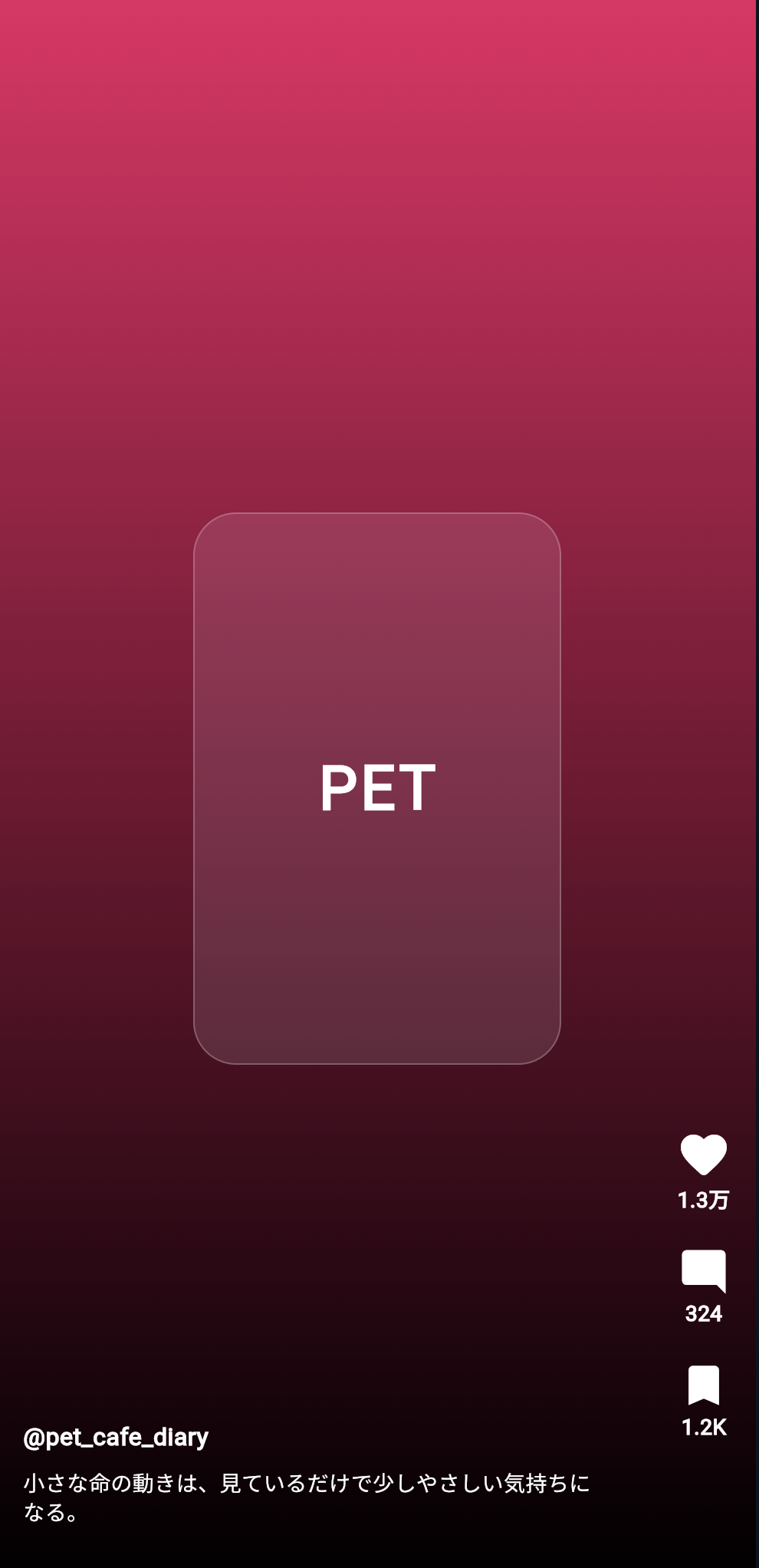
import 'package:flutter/material.dart';

void main() {
  runApp(const NoSplitPracticeApp());
}

class NoSplitPracticeApp extends StatelessWidget {
  const NoSplitPracticeApp({super.key});

  @override
  Widget build(BuildContext context) {
    return const MaterialApp(
      debugShowCheckedModeBanner: false,
      home: NoSplitPracticePage(),
    );
  }
}

class NoSplitPracticePage extends StatelessWidget {
  const NoSplitPracticePage({super.key});

  @override
  Widget build(BuildContext context) {
    return Scaffold(
      backgroundColor: Colors.black,
      body: Stack(
        children: [
          Positioned.fill(
            child: DecoratedBox(
              decoration: const BoxDecoration(
                gradient: LinearGradient(
                  begin: Alignment.topCenter,
                  end: Alignment.bottomCenter,
                  colors: [
                    Color(0xFFE91E63),
                    Colors.black,
                  ],
                ),
              ),
              child: Center(
                child: Container(
                  width: 240,
                  height: 360,
                  decoration: BoxDecoration(
                    color: Colors.white12,
                    borderRadius: BorderRadius.circular(28),
                    border: Border.all(
                      color: Colors.white24,
                    ),
                  ),
                  child: const Center(
                    child: Text(
                      'PET',
                      style: TextStyle(
                        color: Colors.white,
                        fontSize: 40,
                        fontWeight: FontWeight.bold,
                        letterSpacing: 2,
                      ),
                    ),
                  ),
                ),
              ),
            ),
          ),
          Positioned(
            right: 16,
            bottom: 90,
            child: Column(
              children: const [
                Icon(
                  Icons.favorite_rounded,
                  color: Colors.white,
                  size: 36,
                ),
                Text(
                  '1.3万',
                  style: TextStyle(
                    color: Colors.white,
                    fontWeight: FontWeight.bold,
                  ),
                ),
                SizedBox(height: 20),
                Icon(
                  Icons.mode_comment_rounded,
                  color: Colors.white,
                  size: 34,
                ),
                Text(
                  '324',
                  style: TextStyle(
                    color: Colors.white,
                    fontWeight: FontWeight.bold,
                  ),
                ),
                SizedBox(height: 20),
                Icon(
                  Icons.bookmark_rounded,
                  color: Colors.white,
                  size: 34,
                ),
                Text(
                  '1.2K',
                  style: TextStyle(
                    color: Colors.white,
                    fontWeight: FontWeight.bold,
                  ),
                ),
              ],
            ),
          ),
          const Positioned(
            left: 16,
            right: 96,
            bottom: 36,
            child: Column(
              crossAxisAlignment: CrossAxisAlignment.start,
              children: [
                Text(
                  '@pet_cafe_diary',
                  style: TextStyle(
                    color: Colors.white,
                    fontSize: 16,
                    fontWeight: FontWeight.bold,
                  ),
                ),
                SizedBox(height: 8),
                Text(
                  '小さな命の動きは、見ているだけで少しやさしい気持ちになる。',
                  style: TextStyle(
                    color: Colors.white,
                    fontSize: 14,
                    height: 1.35,
                  ),
                ),
              ],
            ),
          ),
        ],
      ),
    );
  }
}
実行して確認すること
このコードでも、画面は表示されます。
背景、右側ボタン、下部情報が表示されます。
つまり、Widgetを分割しなくても、アプリは動きます。
しかし、コードを見ると、NoSplitPracticePage の中にすべてが詰め込まれています。
NoSplitPracticePage
├─ 背景
├─ 右側ボタン
└─ 下部情報
今はまだ短いですが、ここに動画再生、コメント入力、いいね状態、無限スクロールまで入れると、かなり読みにくくなります。
Widgetを分割したコード
次に、同じ画面をWidgetに分けて書きます。
DartPadに次のコードを貼り付けてください。
import 'package:flutter/material.dart';

void main() {
  runApp(const SplitWidgetPracticeApp());
}

class SplitWidgetPracticeApp extends StatelessWidget {
  const SplitWidgetPracticeApp({super.key});

  @override
  Widget build(BuildContext context) {
    return const MaterialApp(
      debugShowCheckedModeBanner: false,
      home: SplitWidgetPracticePage(),
    );
  }
}

class ShortVideo {
  const ShortVideo({
    required this.userName,
    required this.caption,
    required this.categoryLabel,
    required this.likes,
    required this.comments,
    required this.saves,
    required this.avatarColor,
  });

  final String userName;
  final String caption;
  final String categoryLabel;
  final int likes;
  final int comments;
  final int saves;
  final Color avatarColor;
}

const video = ShortVideo(
  userName: 'pet_cafe_diary',
  caption: '小さな命の動きは、見ているだけで少しやさしい気持ちになる。',
  categoryLabel: 'PET',
  likes: 12800,
  comments: 324,
  saves: 1204,
  avatarColor: Color(0xFFE91E63),
);

class SplitWidgetPracticePage extends StatelessWidget {
  const SplitWidgetPracticePage({super.key});

  @override
  Widget build(BuildContext context) {
    return Scaffold(
      backgroundColor: Colors.black,
      body: Stack(
        children: const [
          Positioned.fill(
            child: VideoMockBackground(video: video),
          ),
          Positioned(
            right: 16,
            bottom: 90,
            child: RightActionBar(video: video),
          ),
          Positioned(
            left: 16,
            right: 96,
            bottom: 36,
            child: BottomVideoInfo(video: video),
          ),
        ],
      ),
    );
  }
}

class VideoMockBackground extends StatelessWidget {
  const VideoMockBackground({
    super.key,
    required this.video,
  });

  final ShortVideo video;

  @override
  Widget build(BuildContext context) {
    return DecoratedBox(
      decoration: BoxDecoration(
        gradient: LinearGradient(
          begin: Alignment.topCenter,
          end: Alignment.bottomCenter,
          colors: [
            video.avatarColor,
            Colors.black,
          ],
        ),
      ),
      child: Center(
        child: Container(
          width: 240,
          height: 360,
          decoration: BoxDecoration(
            color: Colors.white.withOpacity(0.12),
            borderRadius: BorderRadius.circular(28),
            border: Border.all(
              color: Colors.white.withOpacity(0.24),
            ),
          ),
          child: Center(
            child: Text(
              video.categoryLabel,
              style: const TextStyle(
                color: Colors.white,
                fontSize: 40,
                fontWeight: FontWeight.bold,
                letterSpacing: 2,
              ),
            ),
          ),
        ),
      ),
    );
  }
}

class RightActionBar extends StatelessWidget {
  const RightActionBar({
    super.key,
    required this.video,
  });

  final ShortVideo video;

  @override
  Widget build(BuildContext context) {
    return Column(
      children: [
        ActionButton(
          icon: Icons.favorite_rounded,
          label: formatCount(video.likes),
        ),
        const SizedBox(height: 20),
        ActionButton(
          icon: Icons.mode_comment_rounded,
          label: formatCount(video.comments),
        ),
        const SizedBox(height: 20),
        ActionButton(
          icon: Icons.bookmark_rounded,
          label: formatCount(video.saves),
        ),
      ],
    );
  }
}

class ActionButton extends StatelessWidget {
  const ActionButton({
    super.key,
    required this.icon,
    required this.label,
  });

  final IconData icon;
  final String label;

  @override
  Widget build(BuildContext context) {
    return Column(
      children: [
        Icon(
          icon,
          color: Colors.white,
          size: 34,
          shadows: const [
            Shadow(
              color: Colors.black54,
              blurRadius: 8,
            ),
          ],
        ),
        const SizedBox(height: 4),
        Text(
          label,
          style: const TextStyle(
            color: Colors.white,
            fontSize: 12,
            fontWeight: FontWeight.bold,
            shadows: [
              Shadow(
                color: Colors.black87,
                blurRadius: 8,
              ),
            ],
          ),
        ),
      ],
    );
  }
}

class BottomVideoInfo extends StatelessWidget {
  const BottomVideoInfo({
    super.key,
    required this.video,
  });

  final ShortVideo video;

  @override
  Widget build(BuildContext context) {
    return SafeArea(
      top: false,
      child: Column(
        crossAxisAlignment: CrossAxisAlignment.start,
        children: [
          Text(
            '@${video.userName}',
            style: const TextStyle(
              color: Colors.white,
              fontSize: 16,
              fontWeight: FontWeight.bold,
              shadows: [
                Shadow(
                  color: Colors.black87,
                  blurRadius: 8,
                ),
              ],
            ),
          ),
          const SizedBox(height: 8),
          Text(
            video.caption,
            maxLines: 2,
            overflow: TextOverflow.ellipsis,
            style: const TextStyle(
              color: Colors.white,
              fontSize: 14,
              height: 1.35,
              shadows: [
                Shadow(
                  color: Colors.black87,
                  blurRadius: 8,
                ),
              ],
            ),
          ),
        ],
      ),
    );
  }
}

String formatCount(int value) {
  if (value >= 10000) {
    final result = value / 10000;
    return '${result.toStringAsFixed(1)}万';
  }

  if (value >= 1000) {
    final result = value / 1000;
    return '${result.toStringAsFixed(1)}K';
  }

  return value.toString();
}
実行して確認すること
実行結果は、分割前のコードとほとんど同じです。
しかし、コードの読みやすさが変わっています。
SplitWidgetPracticePage の中を見ると、画面全体の構造が分かりやすくなっています。
Stack(
  children: const [
    Positioned.fill(
      child: VideoMockBackground(video: video),
    ),
    Positioned(
      right: 16,
      bottom: 90,
      child: RightActionBar(video: video),
    ),
    Positioned(
      left: 16,
      right: 96,
      bottom: 36,
      child: BottomVideoInfo(video: video),
    ),
  ],
)
この部分だけを見ると、画面がどう構成されているか分かります。
背景
右側ボタン
下部情報
細かいデザインは、それぞれのWidgetの中に隠れています。
分割後の構造を確認する
分割後のコードは、次のような構造です。
SplitWidgetPracticePage
└─ Stack
   ├─ VideoMockBackground
   ├─ RightActionBar
   │  ├─ ActionButton
   │  ├─ ActionButton
   │  └─ ActionButton
   └─ BottomVideoInfo
この構造は、完成版にも近いです。
完成版では、VideoMockBackground が VideoBackground になり、本物の動画を表示します。
練習版
VideoMockBackground

完成版
VideoBackground
また、RightActionBar にはプロフィールボタン、共有ボタン、音源ディスクなども入ります。
RightActionBar
├─ ProfileButton
├─ ActionButton いいね
├─ ActionButton コメント
├─ ActionButton 保存
├─ ActionButton 共有
└─ SpinningDisc
データをWidgetに渡す考え方
分割したWidgetには、必要なデータを渡します。
たとえば、BottomVideoInfo は、ユーザー名とキャプションを表示するために video を受け取ります。
BottomVideoInfo(video: video)
BottomVideoInfo の中では、受け取った video を使います。
Text('@${video.userName}')
Text(video.caption)
この流れは、次のようになります。
親Widget
↓
videoを渡す
↓
子Widget
↓
video.userNameやvideo.captionを表示する
Flutterでは、このように親から子へデータを渡してUIを作ります。
新しい言葉:propsのような考え方
Flutterでは「props」という言葉は公式の中心用語ではありませんが、Reactなど他のUIフレームワークでは、親から子へ渡す値をpropsと呼ぶことがあります。
Flutterでは、constructorで受け取るpropertyがそれに近い役割をします。
class BottomVideoInfo extends StatelessWidget {
  const BottomVideoInfo({
    super.key,
    required this.video,
  });

  final ShortVideo video;
}
初心者向けには、次のように理解してください。
親Widgetから子Widgetへ、必要なデータを渡す。
子Widgetは、受け取ったデータを使って表示する。
Widget分割の基本パターン
Widgetを分割するときの基本パターンは、次の通りです。
class WidgetName extends StatelessWidget {
  const WidgetName({
    super.key,
    required this.value,
  });

  final SomeType value;

  @override
  Widget build(BuildContext context) {
    return ...;
  }
}
たとえば、下部情報なら次の形です。
class BottomVideoInfo extends StatelessWidget {
  const BottomVideoInfo({
    super.key,
    required this.video,
  });

  final ShortVideo video;

  @override
  Widget build(BuildContext context) {
    return ...;
  }
}
ここでやっていることは、次の通りです。
1. Widgetの名前を決める
2. 必要なデータをpropertyとして持つ
3. constructorで受け取る
4. buildの中で表示する
StatelessWidgetとStatefulWidgetの使い分け
Widgetを分割するとき、StatelessWidget にするか、StatefulWidget にするか迷うことがあります。
最初は、次のように考えると分かりやすいです。
| 種類 | 使う場面 |
|---|---|
StatelessWidget | 自分自身では状態を変更しない |
StatefulWidget | 自分自身で状態を持ち、変更する |
たとえば、BottomVideoInfo は受け取った動画情報を表示するだけです。
自分自身で状態を変えません。
そのため、StatelessWidget で十分です。
BottomVideoInfo
↓
受け取ったvideoを表示するだけ
↓
StatelessWidget
一方、コメント入力画面の CommentSheet は、入力されたコメントを追加し、表示を更新します。
そのため、StatefulWidget にします。
CommentSheet
↓
localCommentsが変わる
入力欄も管理する
↓
StatefulWidget
どのWidgetがStatefulWidgetになるか
完成版のTikTok風アプリでは、主に次のWidgetが状態を持ちます。
| Widget | 状態 |
|---|---|
ShortVideoHomePage | 現在のページ、いいね済み動画、保存済み動画、共有済み動画、コメント一覧、動画controller |
CommentSheet | 入力中のコメント、BottomSheet内のコメント一覧 |
| その他の表示部品 | 基本的には状態を持たない |
つまり、すべてのWidgetを StatefulWidget にする必要はありません。
多くの表示用Widgetは、StatelessWidget で作れます。
状態を管理する親
↓
必要な値を子に渡す
↓
子は表示に集中する
この分け方が大切です。
UIとロジックを分ける
Widget分割では、UIとロジックを分ける考え方も大切です。
ここでいうUIは、見た目のことです。
ロジックは、処理のことです。
UI
↓
どのように表示するか

ロジック
↓
何をしたらどう変わるか
たとえば、いいねボタンの見た目は ActionButton が担当します。
ActionButton
↓
アイコンとラベルを表示する
押されたらonTapを呼ぶ
一方、いいね状態を変更する処理は、親Widgetが担当します。
void toggleLike(int videoIndex) {
  setState(() {
    if (likedVideoIndexes.contains(videoIndex)) {
      likedVideoIndexes.remove(videoIndex);
    } else {
      likedVideoIndexes.add(videoIndex);
    }
  });
}
このように分けると、ActionButton は汎用的な部品になります。
ActionButtonは、いいね専用ではない
コメントにも保存にも共有にも使える
onTapを外から渡す理由
ActionButton は、自分で「いいねする処理」を持っていません。
代わりに、外から onTap を受け取ります。
ActionButton(
  icon: Icons.favorite_rounded,
  label: formatCount(likeCount),
  isActive: isLiked,
  activeColor: const Color(0xFFFF2D55),
  onTap: onTapLike,
)
ActionButton の中では、タップされたら受け取った onTap を呼びます。
GestureDetector(
  onTap: onTap,
  child: ...
)
これにより、同じ ActionButton をいろいろな用途で使えます。
いいねボタン
↓
onTapLikeを渡す

保存ボタン
↓
onTapSaveを渡す

共有ボタン
↓
onTapShareを渡す
これは、部品化でとても重要な考え方です。
新しい言葉:コールバックとは何か
onTap のように、あとで呼び出される関数をコールバックと呼びます。
初心者向けには、次のように理解してください。
コールバック = 何かが起きたときに実行するために渡しておく関数
たとえば、ボタンが押されたときに実行する処理です。
onTap: onTapLike
これは、次の意味です。
このボタンが押されたら、onTapLikeを実行してね。
ActionButton 自体は、いいねの詳しい処理を知りません。
ただ、押されたら渡された関数を実行します。
完成版に近いWidget分割コード
ここから、完成版に近い形で、右側アクションバー、下部情報、コメント画面を分けたコードを確認します。
今回は動画再生はまだ入れず、分割の考え方に集中します。
DartPadに次のコードを貼り付けてください。
import 'package:flutter/material.dart';
void main() {
runApp(const SplitArchitecturePracticeApp());
}
class SplitArchitecturePracticeApp extends StatelessWidget {
const SplitArchitecturePracticeApp({super.key});
@override
Widget build(BuildContext context) {
return const MaterialApp(
debugShowCheckedModeBanner: false,
home: SplitArchitecturePracticePage(),
);
}
}
class ShortVideo {
const ShortVideo({
required this.userName,
required this.caption,
required this.musicTitle,
required this.categoryLabel,
required this.likes,
required this.comments,
required this.saves,
required this.shares,
required this.avatarColor,
});
final String userName;
final String caption;
final String musicTitle;
final String categoryLabel;
final int likes;
final int comments;
final int saves;
final int shares;
final Color avatarColor;
}
const video = ShortVideo(
userName: 'pet_cafe_diary',
caption: '小さな命の動きは、見ているだけで少しやさしい気持ちになる。今日はペットカフェ風の癒し動画。',
musicTitle: 'Healing Cafe Sound - Pet Cafe Diary',
categoryLabel: 'PET',
likes: 12800,
comments: 324,
saves: 1204,
shares: 856,
avatarColor: Color(0xFFE91E63),
);
class SplitArchitecturePracticePage extends StatefulWidget {
const SplitArchitecturePracticePage({super.key});
@override
State<SplitArchitecturePracticePage> createState() =>
_SplitArchitecturePracticePageState();
}
class _SplitArchitecturePracticePageState
extends State<SplitArchitecturePracticePage> {
bool isLiked = false;
bool isSaved = false;
bool isShared = false;
final List<String> comments = [
'かわいい…ずっと見ていられます',
'この雰囲気すごく好きです',
];
void toggleLike() {
setState(() {
isLiked = !isLiked;
});
}
void toggleSave() {
setState(() {
isSaved = !isSaved;
});
}
void toggleShare() {
setState(() {
isShared = !isShared;
});
}
int get likeCount {
return isLiked ? video.likes + 1 : video.likes;
}
int get saveCount {
return isSaved ? video.saves + 1 : video.saves;
}
int get shareCount {
return isShared ? video.shares + 1 : video.shares;
}
void openCommentSheet() {
showModalBottomSheet<void>(
context: context,
isScrollControlled: true,
useSafeArea: true,
backgroundColor: Colors.transparent,
builder: (context) {
return CommentSheet(
comments: comments,
onSubmit: (text) {
final trimmedText = text.trim();
if (trimmedText.isEmpty) {
return;
}
setState(() {
comments.insert(0, trimmedText);
});
},
);
},
);
}
@override
Widget build(BuildContext context) {
return Scaffold(
backgroundColor: Colors.black,
body: Stack(
children: [
const Positioned.fill(
child: VideoMockBackground(video: video),
),
Positioned(
right: 16,
bottom: 90,
child: RightActionBar(
video: video,
isLiked: isLiked,
isSaved: isSaved,
isShared: isShared,
likeCount: likeCount,
commentCount: comments.length,
saveCount: saveCount,
shareCount: shareCount,
onTapLike: toggleLike,
onTapComment: openCommentSheet,
onTapSave: toggleSave,
onTapShare: toggleShare,
),
),
const Positioned(
left: 16,
right: 96,
bottom: 36,
child: BottomVideoInfo(video: video),
),
],
),
);
}
}
class VideoMockBackground extends StatelessWidget {
const VideoMockBackground({
super.key,
required this.video,
});
final ShortVideo video;
@override
Widget build(BuildContext context) {
return DecoratedBox(
decoration: BoxDecoration(
gradient: LinearGradient(
begin: Alignment.topCenter,
end: Alignment.bottomCenter,
colors: [
video.avatarColor,
Colors.black,
],
),
),
child: Center(
child: Container(
width: 240,
height: 360,
decoration: BoxDecoration(
color: Colors.white.withOpacity(0.12),
borderRadius: BorderRadius.circular(28),
border: Border.all(
color: Colors.white.withOpacity(0.24),
),
),
child: Center(
child: Text(
video.categoryLabel,
style: const TextStyle(
color: Colors.white,
fontSize: 40,
fontWeight: FontWeight.bold,
letterSpacing: 2,
),
),
),
),
),
);
}
}
class RightActionBar extends StatelessWidget {
const RightActionBar({
super.key,
required this.video,
required this.isLiked,
required this.isSaved,
required this.isShared,
required this.likeCount,
required this.commentCount,
required this.saveCount,
required this.shareCount,
required this.onTapLike,
required this.onTapComment,
required this.onTapSave,
required this.onTapShare,
});
final ShortVideo video;
final bool isLiked;
final bool isSaved;
final bool isShared;
final int likeCount;
final int commentCount;
final int saveCount;
final int shareCount;
final VoidCallback onTapLike;
final VoidCallback onTapComment;
final VoidCallback onTapSave;
final VoidCallback onTapShare;
@override
Widget build(BuildContext context) {
return Column(
children: [
ProfileButton(color: video.avatarColor),
const SizedBox(height: 22),
ActionButton(
icon: Icons.favorite_rounded,
label: formatCount(likeCount),
activeColor: const Color(0xFFFF2D55),
isActive: isLiked,
onTap: onTapLike,
),
const SizedBox(height: 20),
ActionButton(
icon: Icons.mode_comment_rounded,
label: formatCount(commentCount),
activeColor: const Color(0xFF00D4FF),
isActive: false,
onTap: onTapComment,
),
const SizedBox(height: 20),
ActionButton(
icon: Icons.bookmark_rounded,
label: formatCount(saveCount),
activeColor: const Color(0xFFFFD400),
isActive: isSaved,
onTap: onTapSave,
),
const SizedBox(height: 20),
ActionButton(
icon: Icons.reply_rounded,
label: formatCount(shareCount),
activeColor: const Color(0xFF35F2A2),
isActive: isShared,
rotate: true,
onTap: onTapShare,
),
],
);
}
}
class ProfileButton extends StatelessWidget {
const ProfileButton({
super.key,
required this.color,
});
final Color color;
@override
Widget build(BuildContext context) {
return SizedBox(
width: 54,
height: 64,
child: Stack(
alignment: Alignment.topCenter,
children: [
Container(
width: 50,
height: 50,
decoration: BoxDecoration(
color: color,
shape: BoxShape.circle,
border: Border.all(
color: Colors.white,
width: 2,
),
),
child: const Icon(
Icons.person_rounded,
color: Colors.white,
size: 28,
),
),
Positioned(
bottom: 6,
child: Container(
width: 22,
height: 22,
decoration: const BoxDecoration(
color: Color(0xFFFF2D55),
shape: BoxShape.circle,
),
child: const Icon(
Icons.add_rounded,
color: Colors.white,
size: 18,
),
),
),
],
),
);
}
}
class ActionButton extends StatelessWidget {
const ActionButton({
super.key,
required this.icon,
required this.label,
required this.activeColor,
required this.isActive,
required this.onTap,
this.rotate = false,
});
final IconData icon;
final String label;
final Color activeColor;
final bool isActive;
final VoidCallback onTap;
final bool rotate;
@override
Widget build(BuildContext context) {
final iconWidget = AnimatedScale(
duration: const Duration(milliseconds: 140),
scale: isActive ? 1.18 : 1.0,
curve: Curves.easeOutBack,
child: Icon(
icon,
color: isActive ? activeColor : Colors.white,
size: 34,
shadows: const [
Shadow(
color: Colors.black54,
blurRadius: 8,
),
],
),
);
return GestureDetector(
behavior: HitTestBehavior.opaque,
onTap: onTap,
child: Column(
children: [
rotate
? Transform.rotate(
angle: 3.14,
child: iconWidget,
)
: iconWidget,
const SizedBox(height: 4),
Text(
label,
style: TextStyle(
color: isActive ? activeColor : Colors.white,
fontSize: 12,
fontWeight: FontWeight.bold,
shadows: const [
Shadow(
color: Colors.black87,
blurRadius: 8,
),
],
),
),
],
),
);
}
}
class BottomVideoInfo extends StatelessWidget {
const BottomVideoInfo({
super.key,
required this.video,
});
final ShortVideo video;
@override
Widget build(BuildContext context) {
return SafeArea(
top: false,
child: Column(
crossAxisAlignment: CrossAxisAlignment.start,
children: [
Text(
'@${video.userName}',
style: const TextStyle(
color: Colors.white,
fontSize: 16,
fontWeight: FontWeight.bold,
shadows: [
Shadow(
color: Colors.black87,
blurRadius: 8,
),
],
),
),
const SizedBox(height: 8),
Text(
video.caption,
maxLines: 2,
overflow: TextOverflow.ellipsis,
style: const TextStyle(
color: Colors.white,
fontSize: 14,
height: 1.35,
shadows: [
Shadow(
color: Colors.black87,
blurRadius: 8,
),
],
),
),
const SizedBox(height: 10),
Row(
children: [
Container(
padding: const EdgeInsets.symmetric(
horizontal: 7,
vertical: 3,
),
decoration: BoxDecoration(
color: Colors.white.withOpacity(0.16),
borderRadius: BorderRadius.circular(999),
border: Border.all(
color: Colors.white.withOpacity(0.18),
),
),
child: Text(
video.categoryLabel,
style: const TextStyle(
color: Colors.white,
fontSize: 11,
fontWeight: FontWeight.bold,
),
),
),
const SizedBox(width: 8),
const Icon(
Icons.music_note_rounded,
color: Colors.white,
size: 17,
),
const SizedBox(width: 5),
Expanded(
child: Text(
video.musicTitle,
maxLines: 1,
overflow: TextOverflow.ellipsis,
style: const TextStyle(
color: Colors.white,
fontSize: 13,
fontWeight: FontWeight.w600,
shadows: [
Shadow(
color: Colors.black87,
blurRadius: 8,
),
],
),
),
),
],
),
],
),
);
}
}
class CommentSheet extends StatefulWidget {
const CommentSheet({
super.key,
required this.comments,
required this.onSubmit,
});
final List<String> comments;
final ValueChanged<String> onSubmit;
@override
State<CommentSheet> createState() => _CommentSheetState();
}
class _CommentSheetState extends State<CommentSheet> {
final TextEditingController controller = TextEditingController();
late List<String> localComments;
@override
void initState() {
super.initState();
localComments = [...widget.comments];
}
@override
void dispose() {
controller.dispose();
super.dispose();
}
void submitComment() {
final text = controller.text.trim();
if (text.isEmpty) {
return;
}
widget.onSubmit(text);
setState(() {
localComments.insert(0, text);
controller.clear();
});
}
@override
Widget build(BuildContext context) {
final bottomInset = MediaQuery.of(context).viewInsets.bottom;
return AnimatedPadding(
duration: const Duration(milliseconds: 180),
curve: Curves.easeOut,
padding: EdgeInsets.only(bottom: bottomInset),
child: Container(
height: MediaQuery.of(context).size.height * 0.72,
decoration: const BoxDecoration(
color: Color(0xFF111111),
borderRadius: BorderRadius.vertical(
top: Radius.circular(22),
),
),
child: Column(
children: [
const SizedBox(height: 10),
Container(
width: 42,
height: 4,
decoration: BoxDecoration(
color: Colors.white24,
borderRadius: BorderRadius.circular(999),
),
),
const SizedBox(height: 12),
Padding(
padding: const EdgeInsets.symmetric(horizontal: 16),
child: Row(
children: [
const Spacer(),
Text(
'${localComments.length}件のコメント',
style: const TextStyle(
color: Colors.white,
fontSize: 15,
fontWeight: FontWeight.bold,
),
),
const Spacer(),
GestureDetector(
onTap: () => Navigator.of(context).pop(),
child: const Icon(
Icons.close_rounded,
color: Colors.white,
size: 26,
),
),
],
),
),
const SizedBox(height: 10),
Expanded(
child: ListView.separated(
padding: const EdgeInsets.fromLTRB(16, 8, 16, 12),
itemCount: localComments.length,
separatorBuilder: (context, index) {
return const SizedBox(height: 16);
},
itemBuilder: (context, index) {
return CommentTile(
index: index,
text: localComments[index],
);
},
),
),
CommentInputBar(
controller: controller,
onSubmit: submitComment,
),
],
),
),
);
}
}
class CommentTile extends StatelessWidget {
const CommentTile({
super.key,
required this.index,
required this.text,
});
final int index;
final String text;
@override
Widget build(BuildContext context) {
final colors = [
const Color(0xFFE91E63),
const Color(0xFF2196F3),
const Color(0xFFFF9800),
const Color(0xFF4CAF50),
];
final color = colors[index % colors.length];
return Row(
crossAxisAlignment: CrossAxisAlignment.start,
children: [
CircleAvatar(
radius: 18,
backgroundColor: color,
child: const Icon(
Icons.person_rounded,
color: Colors.white,
size: 20,
),
),
const SizedBox(width: 10),
Expanded(
child: Column(
crossAxisAlignment: CrossAxisAlignment.start,
children: [
Text(
'user_${index + 1}',
style: TextStyle(
color: Colors.white.withOpacity(0.62),
fontSize: 12,
fontWeight: FontWeight.bold,
),
),
const SizedBox(height: 3),
Text(
text,
style: const TextStyle(
color: Colors.white,
fontSize: 14,
height: 1.35,
fontWeight: FontWeight.w500,
),
),
],
),
),
],
);
}
}
class CommentInputBar extends StatelessWidget {
const CommentInputBar({
super.key,
required this.controller,
required this.onSubmit,
});
final TextEditingController controller;
final VoidCallback onSubmit;
@override
Widget build(BuildContext context) {
return SafeArea(
top: false,
child: Container(
padding: const EdgeInsets.fromLTRB(12, 10, 12, 10),
decoration: BoxDecoration(
color: const Color(0xFF111111),
border: Border(
top: BorderSide(
color: Colors.white.withOpacity(0.08),
),
),
),
child: Row(
children: [
const CircleAvatar(
radius: 18,
backgroundColor: Color(0xFF444444),
child: Icon(
Icons.person_rounded,
color: Colors.white,
size: 20,
),
),
const SizedBox(width: 10),
Expanded(
child: Container(
height: 42,
padding: const EdgeInsets.symmetric(horizontal: 14),
decoration: BoxDecoration(
color: Colors.white.withOpacity(0.09),
borderRadius: BorderRadius.circular(999),
),
alignment: Alignment.center,
child: TextField(
controller: controller,
style: const TextStyle(
color: Colors.white,
fontSize: 14,
),
cursorColor: Colors.white,
decoration: InputDecoration(
isCollapsed: true,
border: InputBorder.none,
hintText: 'コメントを追加...',
hintStyle: TextStyle(
color: Colors.white.withOpacity(0.42),
fontSize: 14,
),
),
onSubmitted: (_) => onSubmit(),
),
),
),
const SizedBox(width: 8),
GestureDetector(
onTap: onSubmit,
child: Container(
height: 42,
padding: const EdgeInsets.symmetric(horizontal: 14),
decoration: BoxDecoration(
color: const Color(0xFFFF2D55),
borderRadius: BorderRadius.circular(999),
),
alignment: Alignment.center,
child: const Text(
'送信',
style: TextStyle(
color: Colors.white,
fontSize: 13,
fontWeight: FontWeight.bold,
),
),
),
),
],
),
),
);
}
}
String formatCount(int value) {
if (value >= 10000) {
final result = value / 10000;
return '${result.toStringAsFixed(1)}万';
}
if (value >= 1000) {
final result = value / 1000;
return '${result.toStringAsFixed(1)}K';
}
return value.toString();
}
実行して確認すること
このコードでは、次のことを確認できます。
いいねボタンを押すと色が変わる
保存ボタンを押すと色が変わる
共有ボタンを押すと色が変わる
コメントボタンを押すとBottomSheetが開く
コメントを入力するとコメント一覧に追加される
下部情報がvideoデータから表示される
今回のコードは、完成版の考え方にかなり近いです。
ただし、まだ本物の動画再生や無限スクロールは入れていません。
ここで大切なのは、次の構造です。
親Widgetが状態を持つ
↓
子Widgetに値と処理を渡す
↓
子Widgetは表示とタップ検知に集中する
状態を親Widgetに集める理由
今回のコードでは、いいね・保存・共有・コメント一覧を親Widgetである _SplitArchitecturePracticePageState が持っています。
bool isLiked = false;
bool isSaved = false;
bool isShared = false;

final List<String> comments = [
  'かわいい…ずっと見ていられます',
  'この雰囲気すごく好きです',
];
なぜ ActionButton や CommentSheet だけに状態を持たせないのでしょうか。
理由は、画面全体で共有したい状態だからです。
たとえば、コメントを追加すると、コメント欄の中だけでなく、右側のコメント数も増えてほしいです。
コメントを追加
↓
CommentSheetの表示が変わる
右側のコメント数も変わる
このように、複数のWidgetに関係する状態は、共通の親Widgetで管理すると分かりやすくなります。
子Widgetは表示に集中する
RightActionBar は、自分でいいね状態を変更しません。
外から受け取った値を表示します。
RightActionBar(
  isLiked: isLiked,
  isSaved: isSaved,
  isShared: isShared,
  onTapLike: toggleLike,
  onTapSave: toggleSave,
  onTapShare: toggleShare,
)
RightActionBar の役割は、表示です。
受け取ったisLikedを見る
↓
ハートの色を変える

受け取ったonTapLikeをActionButtonに渡す
↓
押されたら親の処理が動く
このようにすると、役割が分かりやすくなります。
親
↓
状態と処理を持つ

子
↓
表示とタップ検知を担当する
ここまでの設計を図で見る
今回の設計は、次のようになります。
SplitArchitecturePracticePage
├─ 状態を持つ
│  ├─ isLiked
│  ├─ isSaved
│  ├─ isShared
│  └─ comments
│
├─ 処理を持つ
│  ├─ toggleLike
│  ├─ toggleSave
│  ├─ toggleShare
│  └─ openCommentSheet
│
└─ UI部品に渡す
   ├─ RightActionBar
   ├─ BottomVideoInfo
   └─ CommentSheet
この流れを理解できると、完成版のコードも読みやすくなります。
完成版ではどうなるか
完成版では、動画が複数本になります。
そのため、状態も動画ごとに管理します。
1本だけなら、次のように bool で十分でした。
bool isLiked = false;
しかし、複数動画では、動画ごとにいいね状態が違います。
videos[0] はいいね済み
videos[1] は未いいね
videos[2] は保存済み
そのため、完成版では Set<int> を使います。
final Set<int> likedVideoIndexes = {};
final Set<int> savedVideoIndexes = {};
final Set<int> sharedVideoIndexes = {};
考え方は同じです。
今回
1本の動画に対して bool で状態管理

完成版
複数動画に対して Set<int> で状態管理
Widget分割の考え方はどんなアプリでも同じ
今回の題材はTikTok風アプリです。
しかし、Widget分割の考え方は、他のアプリでも同じです。
たとえば、商品一覧アプリなら次のように分けられます。
ProductListPage
├─ ProductCard
├─ ProductImage
├─ ProductPrice
└─ FavoriteButton
予約アプリなら、次のように分けられます。
ReservationPage
├─ CalendarHeader
├─ DateSelector
├─ TimeSlotList
├─ TimeSlotButton
└─ ReservationConfirmButton
教材アプリなら、次のように分けられます。
LessonPage
├─ LessonHeader
├─ ChapterList
├─ LessonCard
└─ ProgressIndicator
アプリの種類が違っても、考え方は同じです。
画面を観察する
↓
意味のあるまとまりに分ける
↓
Widgetとして名前をつける
↓
必要なデータを渡す
↓
親で状態を管理する
手を動かす練習1:ActionButtonを追加する
RightActionBar の中に、次のボタンを追加してみましょう。
const SizedBox(height: 20),
ActionButton(
  icon: Icons.flag_rounded,
  label: '報告',
  activeColor: Colors.orange,
  isActive: false,
  onTap: () {},
),
右側に報告ボタンが追加されます。
この練習で、ActionButton が再利用できる部品であることを確認できます。
手を動かす練習2:BottomVideoInfoを変更する
BottomVideoInfo の中に、次のTextを追加してみましょう。
const SizedBox(height: 8),
const Text(
  '#pet #cafe #flutter',
  style: TextStyle(
    color: Colors.white70,
    fontSize: 13,
  ),
),
下部情報にハッシュタグ風の表示が追加されます。
このように、下部情報だけを修正したい場合は、BottomVideoInfo の中を見ればよいです。
手を動かす練習3:背景Widgetだけ変更する
VideoMockBackground のグラデーション色を変えてみましょう。
colors: [
  video.avatarColor,
  Colors.black,
],
これを次のように変えます。
colors: [
  Colors.deepPurple,
  Colors.black,
],
背景だけが変わります。
他のWidgetには影響しません。
これが、Widgetを分割するメリットです。
手を動かす練習4:コメント欄の高さを変える
CommentSheet の中にある次の部分を探します。
height: MediaQuery.of(context).size.height * 0.72,
これを次のように変えてみます。
height: MediaQuery.of(context).size.height * 0.60,
コメント欄の高さが変わります。
コメント欄の調整は、CommentSheet の中だけ見ればよいです。
手を動かす練習5:送信ボタンの色を変える
CommentInputBar の送信ボタンの色を変えてみます。
color: const Color(0xFFFF2D55),
これを次のように変えます。
color: Colors.blueAccent,
送信ボタンだけが変わります。
このように、Widgetを分割しておくと、修正する場所が明確になります。
よくあるつまずき1:Widgetを分けすぎる
Widget分割は大切ですが、細かく分けすぎると逆に読みにくくなることがあります。
たとえば、1行のTextだけを毎回Widgetに分ける必要はありません。
class UserNameText extends StatelessWidget {
  ...
}
このように細かすぎる分割は、かえってファイルやclassが増えすぎます。
最初は、次の基準で分けるとよいです。
意味のあるまとまりなら分ける
同じ形を何度も使うなら分ける
コードが長くなったら分ける
名前をつけにくいなら無理に分けない
よくあるつまずき2:どこに状態を置けばよいか分からない
状態は、その状態を使うWidgetたちの共通の親に置くと考えると分かりやすいです。
コメント数を例にします。
コメント数は、右側アクションバーにも表示します。
コメント欄でも使います。
RightActionBar
↓
コメント数を表示する

CommentSheet
↓
コメントを追加する
この2つの共通の親に、コメント一覧を置くと自然です。
親Widget
├─ commentsを持つ
├─ RightActionBarにコメント数を渡す
└─ CommentSheetにcommentsとonSubmitを渡す
よくあるつまずき3:子Widgetの中で親の変数を直接変えようとする
子Widgetから親の変数を直接変更するのではなく、親から関数を渡します。
RightActionBar(
  onTapLike: toggleLike,
)
子Widgetは、押されたときにその関数を呼ぶだけです。
GestureDetector(
  onTap: onTap,
)
この流れを覚えてください。
親が処理を持つ
↓
子に関数を渡す
↓
子がタップされたら関数を呼ぶ
↓
親の状態が変わる
↓
画面が更新される
よくあるつまずき4:Widgetの名前が決められない
名前が決められないときは、そのWidgetが画面上で何を表しているかを考えます。
動画背景
↓
VideoBackground

右側の操作ボタン
↓
RightActionBar

コメント欄
↓
CommentSheet

コメント1件
↓
CommentTile

コメント入力欄
↓
CommentInputBar
名前は、コードを読む人に役割を伝えるためのものです。
迷ったら、少し長くても意味が分かる名前のほうがよいです。
よくあるつまずき5:constがつけられない
分割したWidgetに変数を渡すと、const が使えないことがあります。
RightActionBar(
  isLiked: isLiked,
)
isLiked は変数なので、このWidgetは固定ではありません。
そのため、const をつけるとエラーになることがあります。
初心者のうちは、次の方針で大丈夫です。
constでエラーになるなら外す
状態や変数を渡すWidgetではconstを外すことが多い
固定のTextやIconにはconstをつけられる
この節の確認問題
確認問題1
Widgetを分割する理由は何ですか。
答え
コードを読みやすくし、役割ごとに整理し、修正しやすくするためです。
また、同じ形のUIを再利用しやすくなります。
確認問題2
責任とは何ですか。
答え
そのWidgetが担当する仕事のことです。
たとえば、VideoBackground は動画背景の表示、RightActionBar は右側ボタンの表示を担当します。
確認問題3
ActionButton を分けるメリットは何ですか。
答え
いいね・コメント・保存・共有のような同じ形のボタンを、共通のWidgetとして再利用できることです。
確認問題4
状態はどこに置くと分かりやすいですか。
答え
その状態を使うWidgetたちの共通の親Widgetに置くと分かりやすいです。
確認問題5
コールバックとは何ですか。
答え
何かが起きたときに実行するために、外から渡しておく関数です。
たとえば、onTapLike は、いいねボタンが押されたときに呼ばれるコールバックです。
確認問題6
StatelessWidget と StatefulWidget はどう使い分けますか。
答え
自分自身で状態を変更しない表示用の部品は StatelessWidget にします。
自分自身で状態を持ち、表示を変更する部品は StatefulWidget にします。
確認問題7
Widget名を決めるときに大切なことは何ですか。
答え
そのWidgetが何を表しているのか、名前を見ただけで分かるようにすることです。
この節のまとめ
この節では、TikTok風アプリのコードを読みやすくするために、Widgetを分割する考え方を学びました。
複雑な画面も、意味のあるまとまりに分けると理解しやすくなります。
ShortVideoPage
├─ VideoBackground
├─ VideoGradientOverlay
├─ TopNavigation
├─ RightActionBar
├─ BottomVideoInfo
└─ CommentSheet
Widgetを分割するときは、それぞれの責任を考えます。
VideoBackground
↓
動画背景を表示する

RightActionBar
↓
右側ボタンを表示する

CommentSheet
↓
コメント欄を表示する

BottomVideoInfo
↓
投稿者情報を表示する
また、状態を親Widgetに置き、子Widgetには必要な値と関数を渡す流れも学びました。
親Widget
↓
状態と処理を持つ

子Widget
↓
受け取った値を表示する
必要なときにコールバックを呼ぶ
この節で一番大切なのは、次の一文です。
読みやすいFlutterコードは、画面を意味のあるWidgetに分け、状態と表示の役割を整理して作る。
次の節では、これまで作ってきた部品がどのようにつながって完成アプリになるのか、完成コード全体を読み解いていきます。